





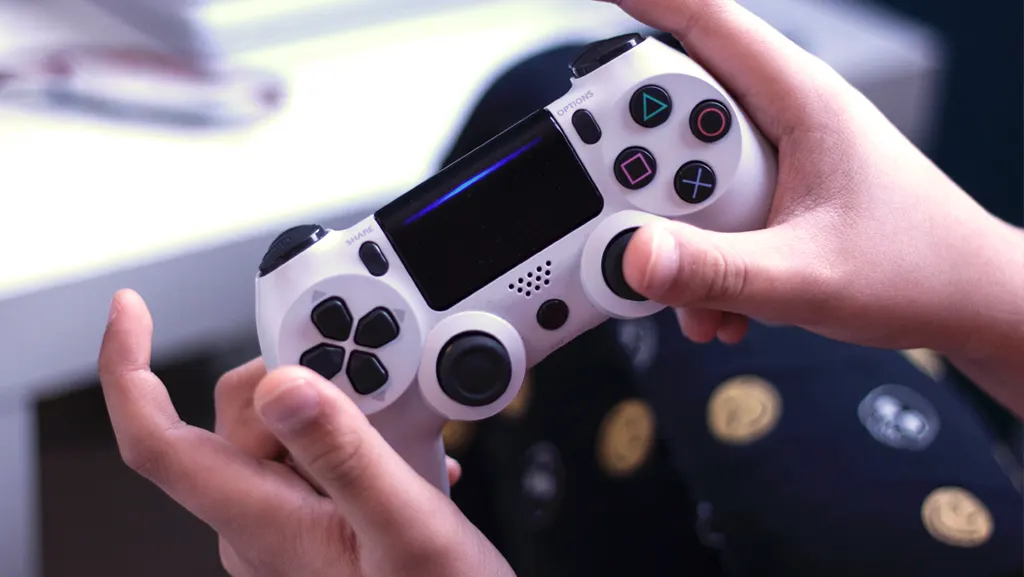
Controllers are essential for many gaming experiences, but sometimes they fail to work, causing frustration for gamers. A controller may not respond due to hardware issues, driver problems, or game-specific compatibility issues. Common problems include unrecognized inputs, lag, or complete disconnection. Whether you are using an Xbox, PlayStation, Nintendo Switch, or a third-party controller on PC, identifying the root cause is the first step to resolving the issue. This guide walks you through systematic troubleshooting methods to fix your controller, covering both wired and wireless connections, driver updates, game settings adjustments, and hardware checks. Following these steps helps gamers quickly return to gameplay without unnecessary purchases or long delays.
Check Controller Compatibility
The first step is to ensure your controller is compatible with the game and platform you’re using. Not all controllers work seamlessly with every system or title. For example, Xbox controllers are natively supported on Windows PCs, but some PlayStation controllers require additional software like DS4Windows. Similarly, Nintendo Switch controllers may need adapters or specific settings for PC compatibility. Always check the game’s official documentation or developer forums for supported devices. In addition, ensure that the controller firmware is up to date, as older firmware versions may cause recognition issues.
Compatibility also extends to input types: some games only support XInput devices (commonly Xbox controllers) and may not recognize DirectInput controllers without third-party tools. Ensuring compatibility prevents wasted troubleshooting steps and allows you to focus on the actual problem rather than device limitations. By confirming that your controller is officially supported, you eliminate one of the most common causes of unresponsive or undetected controllers in games.
Inspect Hardware and Connections
Hardware issues and faulty connections are often the simplest yet overlooked causes of controller problems. For wired controllers, check the USB cable for damage, frayed wires, or bent connectors. Ensure the USB port on your PC or console is functional by testing it with another device. For wireless controllers, check the batteries or charge level, as low power can prevent proper operation. Inspect the wireless dongle or Bluetooth adapter for secure placement and proper functioning. Physical damage such as stuck buttons, broken joysticks, or internal component wear can also cause erratic behavior.
Cleaning the controller, ports, and connectors with a soft cloth or compressed air can remove dust or debris that may interfere with connectivity. By methodically checking hardware and connections, you can quickly identify whether the issue is external (cables, ports, batteries) or internal (controller malfunction), allowing you to either fix the connection or consider repair or replacement options.
Restart Your System and Game
Sometimes, the issue isn’t the controller but the system or game software. Restarting your PC or console can resolve temporary glitches affecting controller detection. Close all running applications, reboot the device, and relaunch the game to refresh the system. Many games have bugs that prevent proper input recognition until the game or system is restarted. On PC, restarting can also refresh USB or Bluetooth drivers, clearing any temporary conflicts.
Console users should ensure they fully power down the system rather than using a quick restart, as a complete shutdown can reset the controller’s connection protocols. This simple step often fixes unresponsive controllers caused by temporary software errors, saving time before attempting more complex troubleshooting methods. Restarting also ensures that any firmware updates applied to the system or game are fully loaded and operational.
Update Controller Firmware and Drivers
Outdated firmware or drivers are a common cause of controller issues. Xbox, PlayStation, and other controllers periodically receive updates that improve compatibility and performance. For Xbox controllers on PC, use the Xbox Accessories App to check for firmware updates. PlayStation controllers may require updates through a console or via DS4Windows for PC. On PCs, ensure USB and Bluetooth drivers are current, as outdated drivers can prevent recognition or cause input lag.
Updating firmware not only fixes bugs but can also add new features or improve connectivity stability. Regularly checking for updates ensures that your controller works correctly with new game patches and system updates. By keeping drivers and firmware up to date, you minimize the risk of conflicts and improve overall responsiveness, making your controller function reliably across all supported games.
Reconnect or Re-Pair Wireless Controllers
Wireless controllers may lose connection or fail to pair correctly. To fix this, remove the device from the system’s Bluetooth or wireless settings and re-pair it. For Xbox controllers, press the sync button on the controller and console simultaneously. PlayStation controllers require pressing PS + Share buttons for pairing. On PC, ensure the Bluetooth adapter is working correctly, and remove any previous pairings that may interfere.
Keeping the controller close to the system and minimizing obstacles between the controller and receiver improves connection stability. Re-pairing resets communication channels and often resolves lag, unresponsiveness, or intermittent disconnects. This step is crucial for wireless gaming, as many connection issues stem from pairing conflicts or temporary signal interference.
Check Game Settings and Input Configuration
Even a fully functional controller may not work if the game’s settings are misconfigured. Ensure that controller support is enabled within the game menu. Some titles allow switching between keyboard/mouse and controller inputs, which may need manual selection. Resetting input configurations to default can fix mapping errors or unrecognized buttons. In competitive or multiplayer games, server-side settings or mods may override local input settings, so verify that nothing interferes with controller detection.
Checking the game’s documentation or forums for known issues ensures that you follow recommended configurations. Adjusting these settings guarantees that the game correctly interprets controller inputs, eliminating software-level causes of unresponsiveness.
Test the Controller on Another Device
Testing your controller on a different device helps isolate whether the issue lies with the controller or your system. Try connecting it to another PC, console, or mobile device. If the controller works correctly elsewhere, the problem is likely system-related, such as drivers, software, or USB/Bluetooth conflicts. If the controller still fails, it may be a hardware issue requiring repair or replacement.
This step prevents unnecessary system tweaks and ensures accurate identification of the root cause. Testing on multiple devices is a straightforward diagnostic tool that separates software issues from physical defects.
Use Controller Troubleshooting Tools or Software
Various tools can help diagnose and fix controller problems. On Windows, Joy.cpl lets you test button inputs and recalibrate joysticks. For PlayStation controllers on PC, DS4Windows provides mapping, calibration, and driver management. Steam’s Big Picture Mode automatically detects controllers and allows configuration per game.
These tools allow you to identify faulty buttons, dead zones, or calibration issues. Using troubleshooting software helps resolve subtle problems without hardware replacement and ensures the controller operates optimally across all games and platforms.
Replace or Repair the Controller
If all troubleshooting steps fail, it may be time to repair or replace the controller. Check warranty options first, as many manufacturers provide free repairs or replacements for defective units. For older or third-party controllers, professional repair shops may offer fixes for worn buttons, joystick drift, or internal component failure.
When replacing, consider official models or reputable third-party options to ensure compatibility and durability. Replacement guarantees consistent performance and eliminates persistent frustration caused by malfunctioning controllers.
Conclusion
Fixing a controller not working in games requires a systematic approach, starting with compatibility checks, hardware inspection, system restarts, driver updates, and game configuration adjustments. Wireless controllers often require re-pairing, while software tools can help calibrate and troubleshoot input issues. Testing on other devices ensures accurate diagnosis, and repair or replacement may be necessary for persistent hardware problems. By following these steps, gamers can quickly restore controller functionality and enjoy uninterrupted gameplay.
FAQs
Why is my controller not working in games?
Controllers may fail due to compatibility issues, outdated drivers, low batteries, connection problems, or incorrect game settings.
How do I reset my controller?
For Xbox, press the small reset button on the back. For PlayStation, use a pin to press the reset hole near the L2 button. Wireless controllers may require re-pairing.
Can a PC game fail to detect a controller even if it’s working?
Yes. Some PC games only support specific input types (XInput vs DirectInput), or controller support may need to be enabled in settings.


