


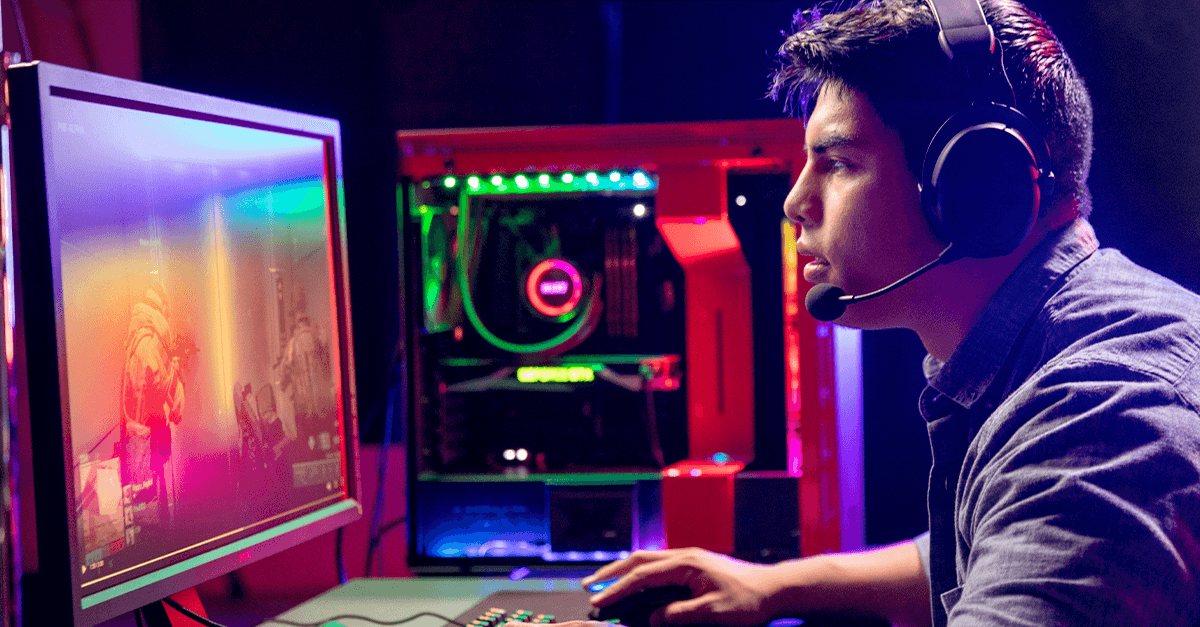
Gaming on a low-end PC can be frustrating due to slow frame rates, lag, and stuttering. Many players assume that only high-end systems can run modern games smoothly, but with proper optimization, even budget PCs can deliver playable experiences. Improving performance requires a combination of hardware tweaks, software adjustments, and strategic settings changes. The article is aimed at gamers who want to maximize the capabilities of their PCs while minimizing frustration. Whether you’re playing indie titles or slightly demanding AAA games, these strategies will help reduce lag, increase frame rates, and provide a more enjoyable gaming experience. Following these methods ensures low-end PCs remain competitive and fun to game on.
Understanding Low-End PC Limitations
Low-end PCs often struggle with gaming because they have hardware components that cannot keep up with modern game requirements. The CPU may lack multiple cores or sufficient clock speed, the GPU might be outdated or integrated, and RAM is usually limited. Storage type also affects performance: HDDs have slower read/write speeds compared to SSDs, leading to longer load times. Thermal throttling can further reduce processing power when components overheat.
These limitations directly impact frame rates, resolution, and graphical quality. Understanding your PC’s bottlenecks is the first step toward improving performance. Monitoring tools like Task Manager or third-party apps can help identify which hardware is limiting your gaming experience. Once you know the weak points, you can prioritize upgrades, optimize software, and adjust game settings accordingly. Awareness of these limitations allows gamers to set realistic expectations and implement targeted strategies for smoother gameplay.
Optimize Game Settings
One of the most effective ways to improve gaming performance on low-end PCs is by adjusting in-game settings. Lowering graphics quality reduces the load on your CPU and GPU, resulting in higher frame rates. Key settings include texture quality, shadows, anti-aliasing, and effects, which can significantly impact performance. Reducing resolution can also boost FPS, especially on integrated graphics. Many modern games feature performance or “low-spec” modes designed to balance visuals and smooth gameplay.
Turning off unnecessary visual effects such as motion blur or ambient occlusion can also help. Additionally, some games allow dynamic resolution scaling, which adjusts the resolution automatically to maintain stable FPS. Combining these tweaks allows low-end PCs to run games more smoothly without hardware upgrades. Experimenting with different settings helps identify the ideal balance between visual quality and performance for your system.
Update Drivers and Software
Keeping your system updated is crucial for gaming performance. GPU and CPU manufacturers regularly release driver updates that improve compatibility, optimize performance, and fix bugs in popular games. Outdated drivers can lead to lower frame rates, crashes, or graphical glitches. Similarly, keeping your operating system updated ensures better stability and resource management. Game developers also release patches that fix performance issues, so regularly updating your games is essential.
System utilities, such as DirectX and Visual C++ Redistributables, should also be current. Many performance problems on low-end PCs are caused by outdated software rather than hardware limitations. Regular updates ensure that your PC uses the latest optimizations, reduces conflicts, and maintains compatibility with new features. A combination of updated drivers, OS patches, and game updates can significantly enhance your gaming experience without spending extra money on hardware.
Upgrade Hardware Strategically
While software tweaks help, some hardware upgrades can dramatically improve gaming performance on low-end PCs. Adding more RAM allows your system to handle games and background processes simultaneously, reducing stuttering. Upgrading to an SSD from an HDD improves loading times and reduces texture pop-ins. If your motherboard supports it, adding a dedicated GPU—even a budget-friendly one—can increase FPS and support higher graphical settings. Prioritizing components that directly affect gaming, such as GPU, RAM, and storage, provides the best value.
Cooling solutions may also be necessary to prevent thermal throttling, which reduces performance under load. While these upgrades don’t require top-of-the-line components, even small improvements can make older PCs capable of running modern games more smoothly. Strategic upgrades ensure that your investment directly enhances gaming experience rather than offering minimal benefit.
Use Game Booster and Optimization Software
Game booster software can improve performance on low-end PCs by optimizing system resources and reducing background activity. Tools like Razer Cortex, Wise Game Booster, and MSI Afterburner temporarily disable unnecessary processes, free up RAM, and prioritize CPU and GPU usage for gaming. These applications can also adjust system settings, such as network optimization, to reduce latency in online games.
Some boosters include FPS monitoring, allowing players to identify performance bottlenecks in real-time. Using such software ensures that the PC dedicates as much power as possible to the game without manual intervention. While not a replacement for hardware upgrades, these tools provide a cost-effective way to maximize performance. Combining game boosters with manual optimization, like adjusting settings and updating drivers, creates a more stable, smooth gaming experience on low-spec machines.
Reduce Background Processes and Apps
Low-end PCs often struggle with gaming because too many background processes consume CPU, RAM, and GPU resources. Closing unnecessary applications, such as browsers, messaging apps, and streaming software, frees up system resources for games. Task Manager on Windows allows users to identify resource-heavy programs and terminate them temporarily. Disabling startup programs reduces the load during boot-up, improving overall system responsiveness.
Monitoring background processes during gameplay can also help detect hidden apps that cause lag or stuttering. Lightweight antivirus solutions or scheduled scans prevent interruptions during gaming sessions. Reducing background activity ensures the CPU and GPU focus on running the game, resulting in smoother FPS and more stable performance. For low-end PCs, this step is crucial, as even minor resource savings can significantly enhance gameplay without requiring hardware changes.
Cooling and Maintenance Tips
Thermal management is critical for maintaining performance on low-end PCs. When components overheat, CPUs and GPUs throttle their performance to prevent damage, causing lag and stuttering in games. Cleaning dust from fans, vents, and heatsinks improves airflow, while repositioning the PC to allow better ventilation prevents heat buildup. Using external cooling pads or additional fans can also reduce temperatures.
Monitoring software like HWMonitor or Core Temp helps track component temperatures during gaming sessions. Proper cable management inside the PC case can enhance airflow, while replacing thermal paste on CPUs or GPUs can improve heat transfer. By maintaining optimal temperatures, low-end PCs can perform consistently during extended gaming sessions. Regular cleaning and cooling improvements prevent performance dips due to overheating, ensuring smoother and more reliable gameplay.
Cloud Gaming Options
Cloud gaming offers an alternative for low-end PCs that struggle with modern games. Services like NVIDIA GeForce Now, Xbox Cloud Gaming, and Google Stadia allow users to play high-end games via streaming, using the server’s processing power rather than relying on local hardware. This approach removes hardware bottlenecks, letting players experience smooth gameplay with higher graphics settings. Cloud gaming requires a stable, high-speed internet connection, and latency may affect responsiveness in competitive titles.
Subscription fees are typically lower than upgrading hardware, making it a cost-effective option. Additionally, cloud platforms often support cross-device play, allowing low-end PCs, laptops, or even tablets to access games previously out of reach. For gamers without budget for upgrades, cloud gaming offers access to AAA titles and modern multiplayer experiences without sacrificing performance or visuals.
Advanced Tips and Tricks
For more experienced users, advanced optimization techniques can further improve gaming performance on low-end PCs. Overclocking the CPU or GPU can increase clock speeds, improving frame rates, though it should be done cautiously to avoid overheating. Installing lightweight game mods or custom patches can reduce graphical load and improve FPS. Adjusting power settings in the operating system to favor performance over energy saving can also help.
Monitoring FPS and using configuration files to tweak game settings manually may provide additional gains. Combining these advanced strategies with software optimization, hardware upgrades, and cooling solutions can extract maximum performance from low-end machines. Gamers who experiment safely and systematically with advanced techniques often achieve significant improvements without expensive hardware upgrades.
Conclusion
Improving gaming performance on low-end PCs requires a multi-faceted approach, combining software optimization, strategic hardware upgrades, and system maintenance. Lowering game settings, updating drivers, closing background apps, and using booster software provide immediate performance gains. Adding RAM, SSDs, or budget GPUs offers more lasting improvements. Maintaining proper cooling ensures stability, while cloud gaming allows access to modern titles without hardware limitations. Advanced techniques like overclocking and lightweight mods can further enhance FPS for experienced users.
FAQs
Can low-end PCs run modern games smoothly?
Yes, low-end PCs can run many modern games smoothly by lowering graphics settings, reducing resolution, updating drivers, and optimizing system performance.
What settings should I change first to boost gaming performance on a low-end PC?
Lowering resolution, disabling shadows and visual effects, closing background apps, and enabling performance mode in system settings usually provide the biggest performance improvements.
Do performance optimization tools help on low-end PCs?
Yes, optimization tools can help by freeing system resources, managing background processes, and applying game-specific performance tweaks, resulting in smoother gameplay.